Android Handhelds QuickStart guide
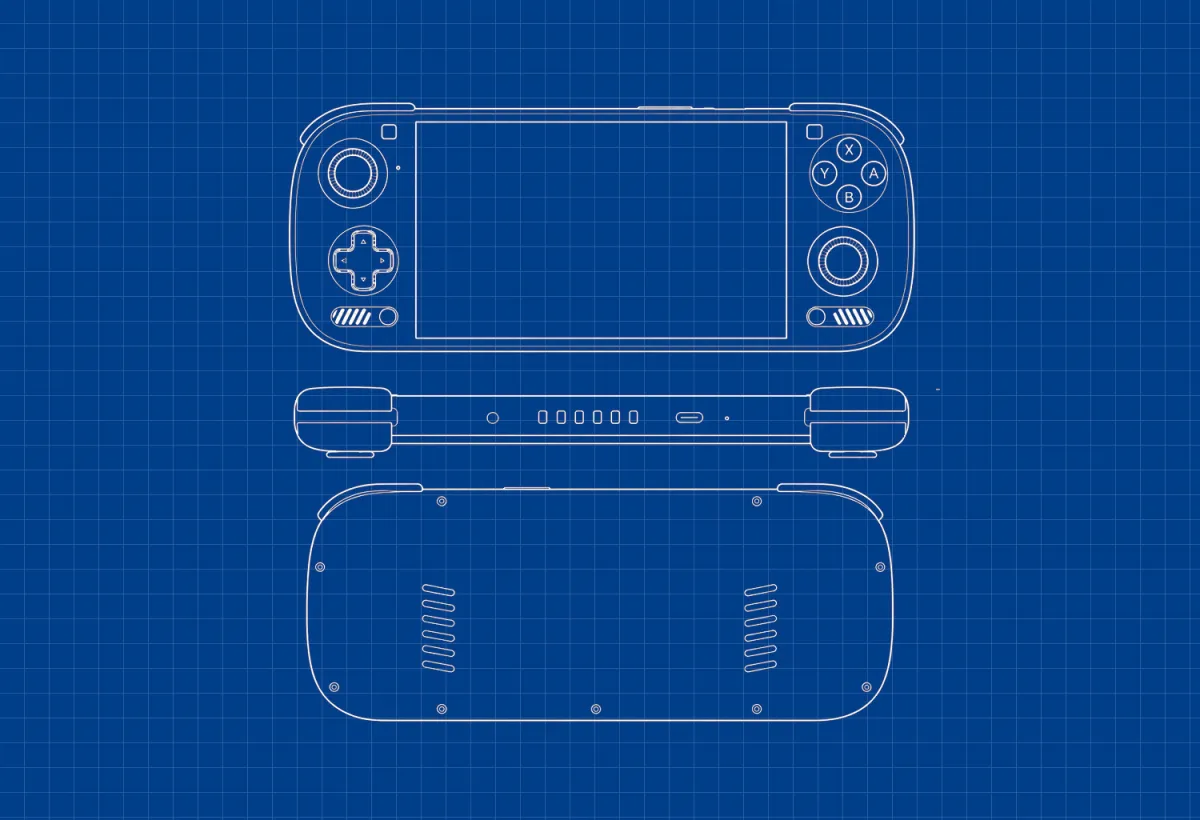
Recently I really had fun messing up with my Ayn Thor so I decided to put together a guide and cover everything you need to get started with your android handheld.
Keep in mind that most of this stuff can be applied to smartphone, tablets or any other android device as well.
Accessories
First of all, let's check out if we have everything we need.
Storage is the main actor. If your handheld supports microSD cards, adding one is the easiest way to grow your library. Smaller cards are fine for older systems, but once you start downloading the latest games, emulating disc-based systems or PC Windows games, space disappears fast. A simple retro setup might fit on 128 GB, but GameCube, Wii, or PS2 will push you toward 256 GB, 512 GB, or even 1 TB.
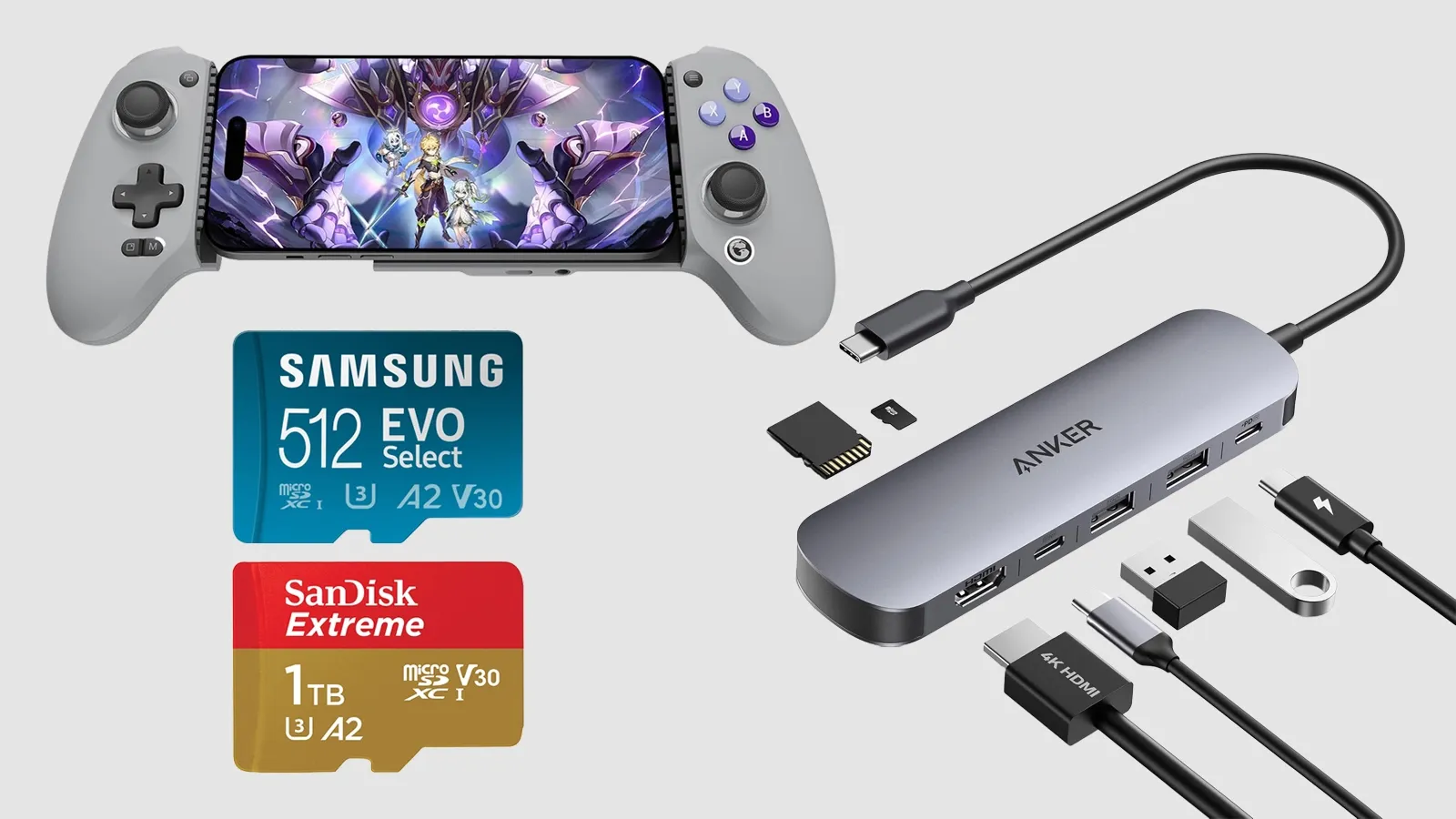
An SD card reader helps more than you’d think. It makes moving files back and forth from a PC much smoother, especially with larger libraries or when you’re updating artwork and BIOS folders.
For phone setups, a telescopic controller is probably the biggest upgrade you can make. It completely changes the experience. Gamesir for example makes some really good ones.
Lastly, if your device supports video output over USB-C, a hub or HDMI adapter opens things up even more. You can plug into a TV, keep the device charging, and hook up controllers or storage at the same time. It ends up feeling a lot like using a docked Switch or Steam Deck.
Android Games
Native Android games are the easiest and faster way to start. You do not have to tweak emulator settings or go looking for ROMs. You open the Play Store, download something and play.
The offer is better than a lot of people expect. You have quick puzzle games, premium releases, arcade games and live service stuff. Google Play Pass helps too. It packs together more than 1,000 games and apps (ads free) including many of the famous ones like Stardew Valley, Dead Cells, and Slay the Spire.
That said, while Android supports physical controllers, many games aren't well optimised in this regard. Be prepared for a not so perfect experience in many cases.
Another interesting side of native gaming are the unofficial game ports. Many fan made projects allow you to play games that don't exist as official releases on Play Store like, for example, Zombdroid launcher for Project Zomboid.
Console Emulators
The main reason we are all here... so let's get into it.
A good emulation setup starts with file organisation. Before you install a pile of apps, decide where your ROMs, BIOS files, saves, and artwork will live. That one step makes the whole setup easier, especially if you add a frontend later or move your library to another device.
It helps to create your ROM folders first. A lot of people do this through ES-DE because it can generate a clean folder structure during setup. That gives you a solid starting point and helps you avoid the usual sprawl of random folders across internal storage or a microSD card.
After that, install the emulators. Some of them are on the Play Store, but a lot of others are not, so sideloading is just part of the process.
To sideload the preferred way is to use Obtainium. Once the emulator is installed it will also check and tell you when a newer version is out handling the update itself instead of doing everything by hand.
If you are setting up a bunch of emulators at once, the import script makes life a lot easier. Start by downloading the latest Obtainium release and install it on your device. Then grab the Emulation Pack JSON script and save it somewhere easy to find to import it.
And if you don't want the whole pack, browse their GitHub page and click the links “Add to Obtainium!” for the ones you want instead of downloading the script.
Once the apps are installed, move your ROMs and BIOS files into the right folders. This is where consistency matters. Clean file names make it easier for frontends to scrape artwork correctly, and a proper BIOS setup saves a lot of frustration later.
From there, configure each emulator on its own. Point it to your game folders, set BIOS paths where needed, map your controls, adjust graphics settings, and choose where saves should go. Once each emulator works by itself, connect everything to a frontend so your games show up in one place instead of being spread across separate apps.
Recommended emulators
Drivers
If your device uses a Snapdragon chip, drivers can make the difference, especially once you start pushing heavier emulators.
Custom “Turnip” drivers get mentioned a lot for a reason. Sometimes they allow us to play a game it didn’t even start, other times… not really. I’ve had games run great on one specific Turnip build, then break on a newer one.
There’s no “install this and you’re done” version. It just doesn’t work that way.
What actually works is testing. Keep a few driver versions on hand and swap them around depending on the emulator or the game. It’s a bit messy but it works and this is the reason why emulators (most of the time) allow you to select custom settings for each game.
You’ll probably want to install Eden emulator even if you don't really play the “Secret Console”. It allows you to download many of the best ones directly from the app and once done you’ll be able to use them in any emulator you want.
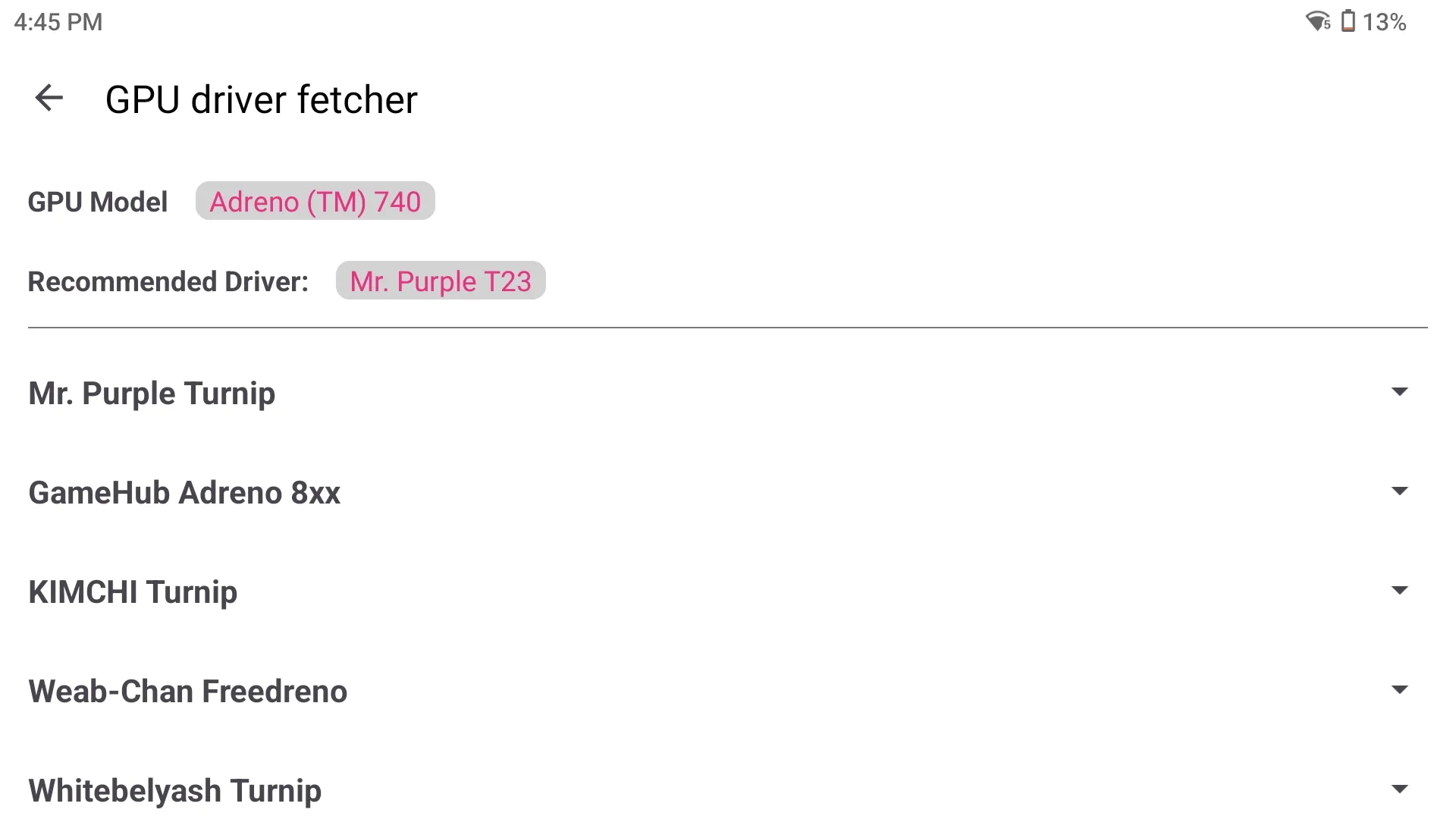
In any case, if you are just starting out download one of the Mr. Purple or K11MCH1 latest releases and see how it goes.
PC Emulators
One of the more advanced (and still evolving) use-cases for Android handhelds is running PC games. Unlike classic console emulators, this is significantly more complex but also increasingly viable on modern hardware.
The basic idea is simple: these apps provide compatibility layers that let Windows applications run on our handhelds, often using tools like Wine or Proton.
Performance depends heavily on your hardware. High-end Android handhelds with modern Snapdragon chips and enough RAM can now run surprisingly demanding titles. That said, this is still not a perfect experience. Compatibility varies, and many games require manual configuration, driver tweaks, or specific versions to work properly.
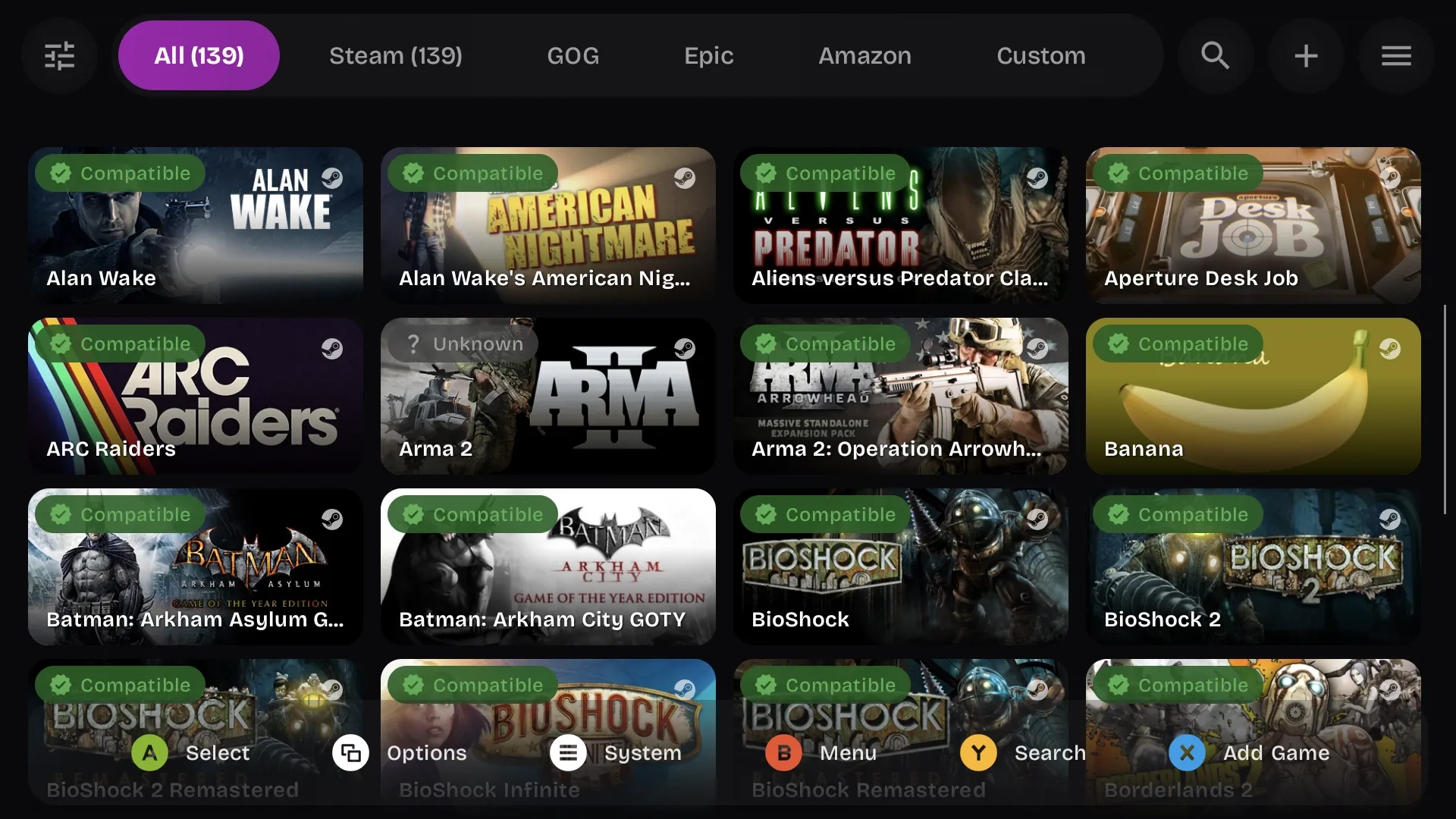
Winlator
The OG one. It offers a good balance between performance and control but requires manual setup. Because of this, it’s better suited for advanced users who want flexibility and deeper customization rather than a simple plug-and-play experience.
GameHub
A more user-friendly alternative made by Gamesir that builds on Winlator’s technology but simplifies the whole process. GameHub automatically configures drivers and game settings, supports Steam login, and provides a polished interface, making it ideal for beginners who want quick setup with minimal technical knowledge.
Gamenative
My favorite one, it’s easy to use like Gamehub and it’s open source. Thanks to this developers and community are really active and the performances are getting better day by day.
Each of them have many forks that customize the experience. For example GameHub lite remove all the bloatware, allow offline playing and add microsd support.
All things considered, I would see PC emulation on Android handhelds as a “bonus feature” rather than the main reason to buy one. The technology is improving with tools becoming easier to use and more compatible every year, but it still requires patience and experimentation. Also, the hardware is often pushed to its limits with high temperatures and the active cooling system that makes significant noise.
You may find console emulation, native gaming and streaming to be a more straightforward experience.
Cloud gaming
Cloud gaming lets you play games that run on remote servers instead of your device. The server renders the game and streams it to your screen like a video, while your inputs are sent back in real time.
These services allow you to play AAA games on any device you want but there are few catches. First of all they require a good, low latency and stable connection and of course they are subscription based so you’ll need to keep paying to play. Another thing to keep in mind is that big titles are usually designed for large screens and often don’t work well on small 6-inch handhelds. In my opinion, you’ll need at least an Odin 2 Portal (7”) to truly enjoy them.
Geforce Now
NVIDIA GeForce Now is focused on letting you stream games you already own from a selection of the most famous stores and for me it's definitely the best service available. The stream quality really looks like magic if you have a decent connection.
It offers two plans, the Performance can run games at 1440p and the Ultimate reaches 5k at 240 FPS working with RTX4080 and RTX5080. If you are playing on handhelds my advice is to save money and go with the Performance plan, it’s more than enough for a small screen.
The biggest downside is that game availability depends on publisher choice and support so you’ll not be able to play anything you want.
Xbox Cloud
Microsoft Xbox Cloud Gaming (part of Game Pass Ultimate) gives access to a large library of games via subscription, with no need to purchase titles individually. It’s one of the most user-friendly options, especially for beginners, though performance and image quality are typically less customizable than PC-focused services.
If you subscribe, take a look at the Better xCloud app for an enhanced experience. It unlocks 1080p resolution and higher-quality codec profiles on all devices, along with several tweaks to make the stream look clearer and sharper.
Shadow PC
Shadow PC takes a different approach by providing a full Windows gaming PC in the cloud, not just a streaming service. You can install any game or software you want just like on a real computer and use for work or study too. This makes it the most flexible option, but also more expensive and complex, since you manage everything by yourself.
One of the main issues with this solution are the anti-cheat or DRM systems, which operate at the kernel level and are typically incompatible with virtualization environments. I often hear about games that don’t work because of this problem.
Boosteroid
Boosteroid can be seen as a more affordable alternative to GFN. It works in the same way and offers a noticeably larger game library and so you might wonder why not just use it instead of GeForce Now.
The main reason is that it doesn’t quite reach the same level of performance or visual quality, and the overall app experience isn’t as polished. I’ve tried switching to it a few times, but the two are on completely different levels.
My advice would be to try it for a month but don’t set your expectations too high.
Android Frontends
A frontend is what turns your device from a collection of apps into something that feels like an actual platform. With it, you scroll through a single library, see your cover art, maybe a video preview, and pick a game like you would on a console.
For many people, this is the moment when everything finally clicks. And yeah, I often end up spending more time here than actually playing.
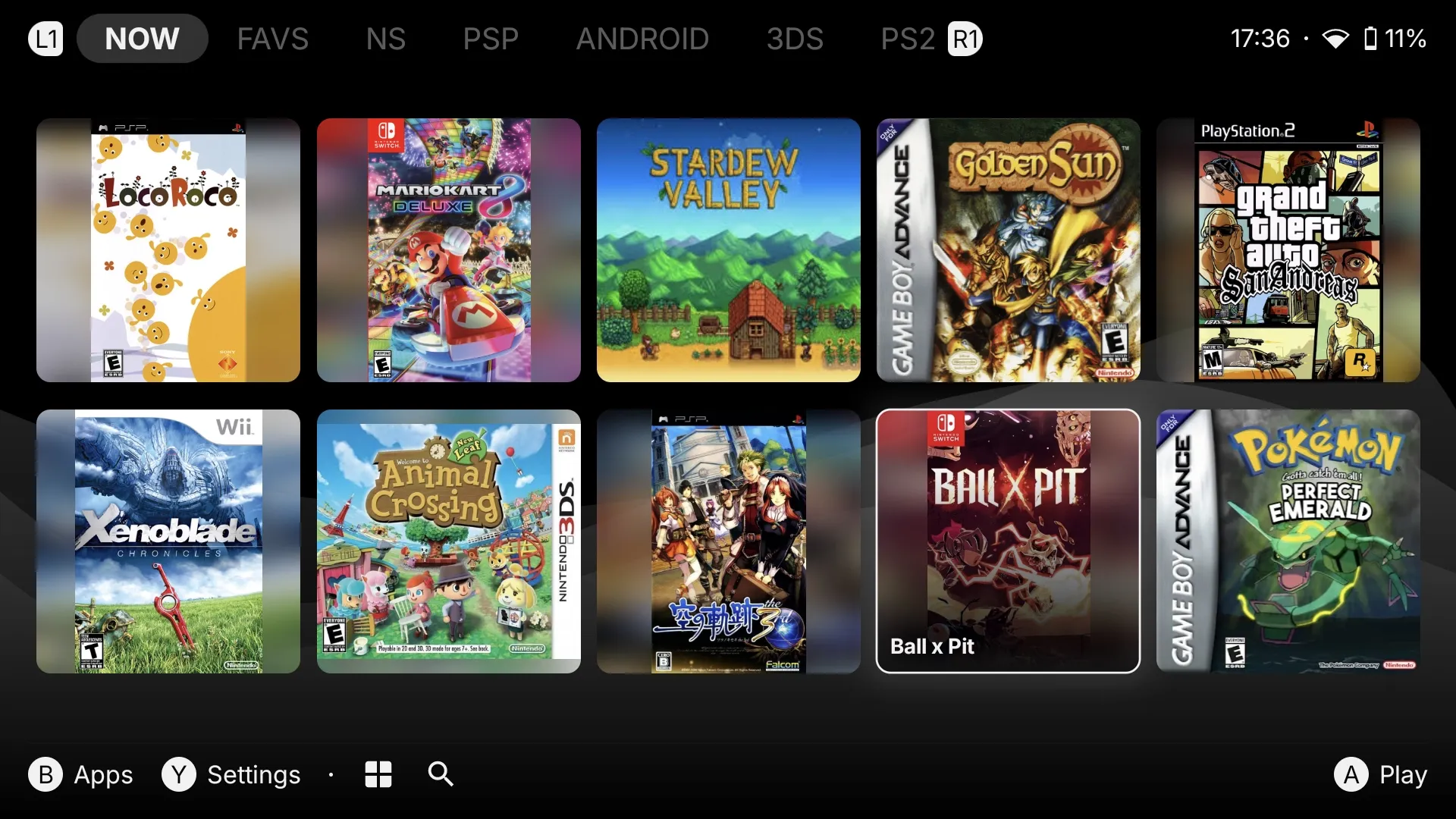
ES-DE
Probably the most famous one out there. It’s not exactly the easiest to set up but it works well, supports beautiful themes and helps create a clean ROM structure from the start. It’s a good option to be able to jump from a handheld to another if you install the resources on a micro sd. You can download it from their Patreon but you’ll have to pay for the Android port.
Daijisho
Daijisho is a great free frontend available directly on Play Store. It’s easy to get running and flexible enough that you don’t feel boxed in. For most people, it’s all you need. Sadly it doesn't have real support for native Android games but you’ll be able to add them as shortcuts in the widget area.
Beacon
Often my first choice. It's 3$ on Play Store and it's easy and fast to set up just like Daijisho + it has support of native games. The developer is active and friendly to talk with, you can find him on the official Discord server.
Most importantly, the wave theme really takes me back to the good old PSP times.
Cocoon
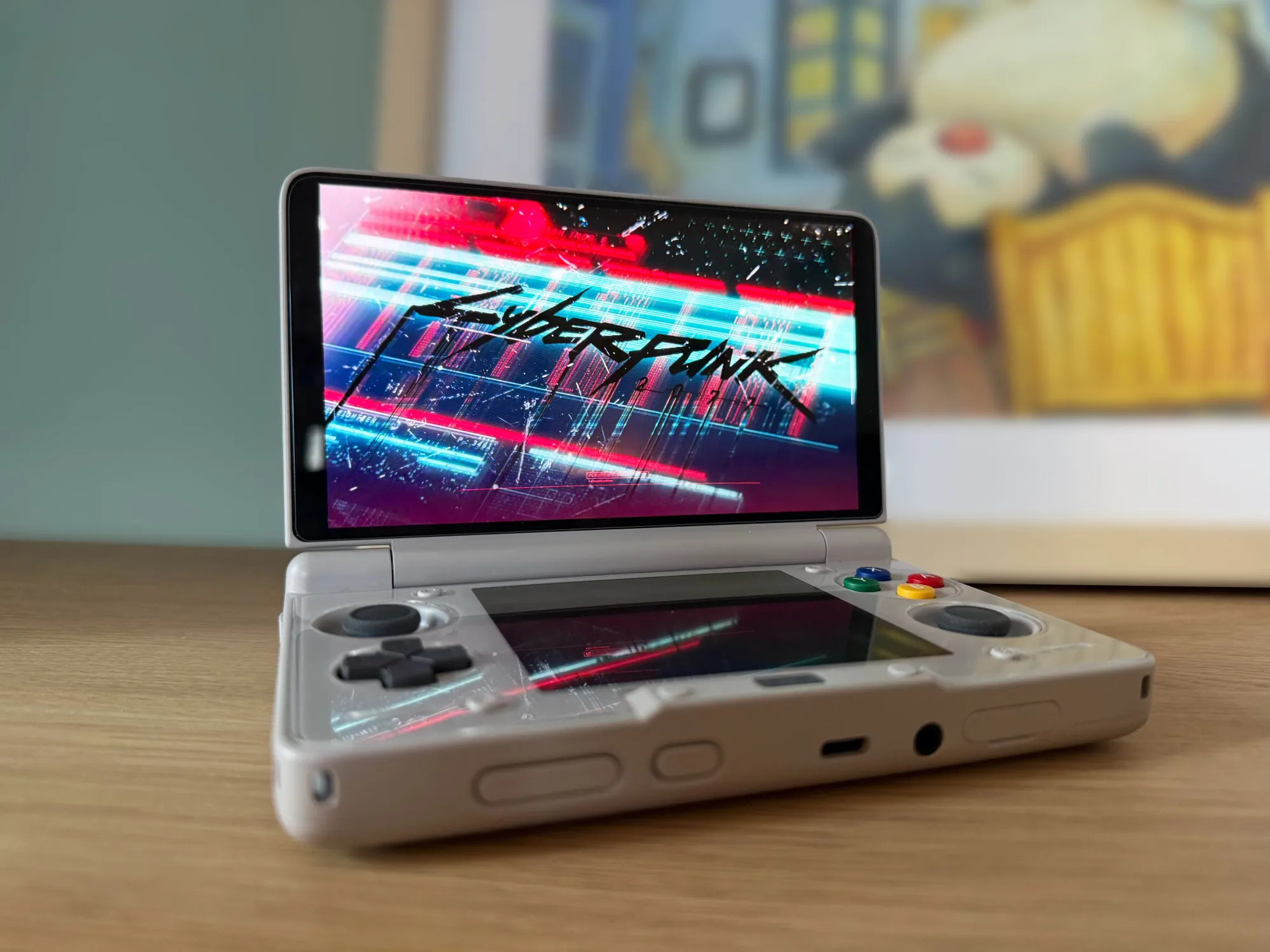
If you have a dual screen device like the Ayn Thor Cocoon is a good (and free) option. It’s built around a 3DS inspired style designed to feel great on both single and dual-screen handhelds.